
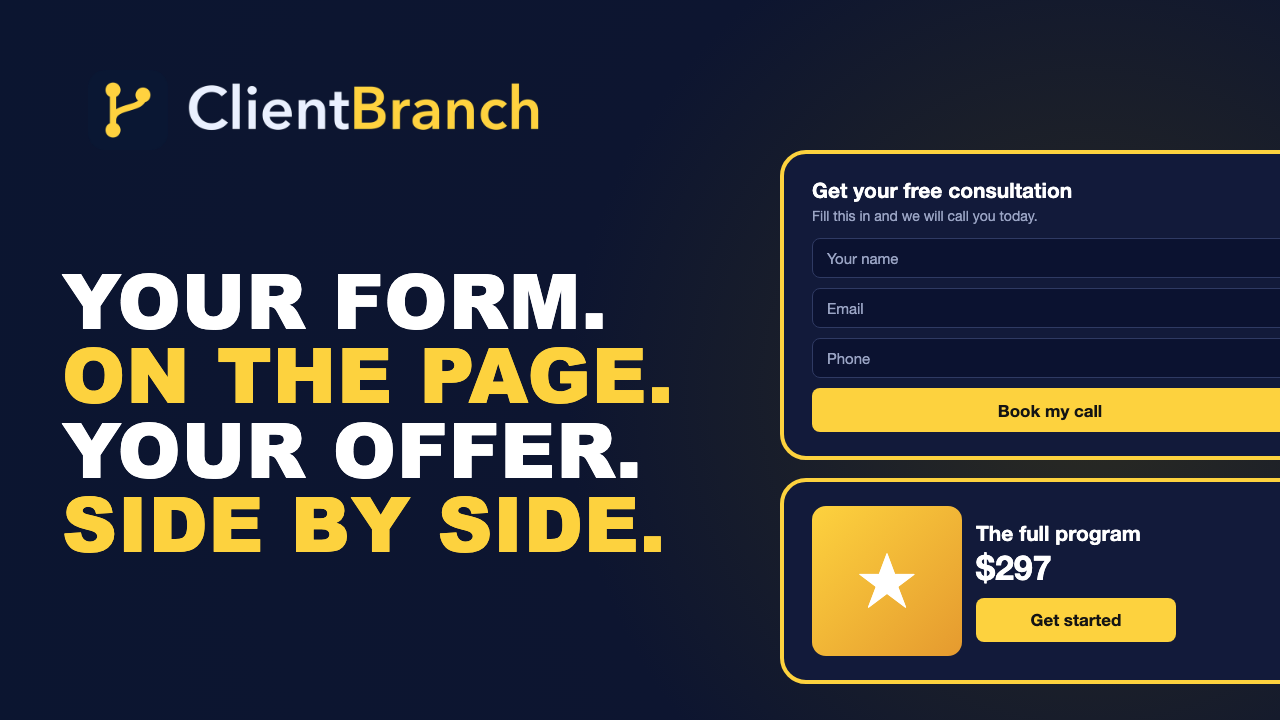
Put Your Lead Form Right on the Page, in a Popup or a Sticky Sidebar, Plus Custom Code and More
The landing page builder just got four upgrades: show your lead form inline, as a popup, a slide-in or a sticky sidebar; add a sub-heading to your offer sections; put an image beside or above your offer stack; and drop your own code anywhere on the page.
Every extra click between a visitor and your form costs you leads. Somebody lands on your page from an ad, reads your headline, likes what they see and taps the button. A new page loads. For a second they wonder if they clicked the wrong thing. Some of them fill in the form anyway. A lot of them hit the back button and you never hear from them.
That is why this week's update to the landing page builder starts with the lead form. You can now put the whole form right on your page, open it in a popup, slide it into the corner or pin it to the side of the screen. Along with that come three smaller upgrades people asked for: an optional sub-heading on your offer sections, an image on your offer stack and price section, and a Custom code section you can place anywhere on the page.
Here is what each one does, when to use it, and how to set it up in a couple of minutes.
Six ways to show your lead form
Until now, the Lead form section showed a heading and a button, and the button took visitors to the form on its own page. That still works, and every page you already built looks exactly the same as it did. The difference is that you now get to choose. Open the Lead form section, pick your form, and use the new How it shows menu:
- Full form on the page. The whole form sits right in the section. Visitors fill it in without going anywhere, and the section grows to fit the form so there are no scroll bars inside it.
- Button that opens the form in a popup. Your styled button stays where it is, but a tap opens the form over the page instead of loading a new one. It closes itself once they submit.
- Button to the form page. The original behavior, for when you want the form on its own page.
- Popup that opens on its own. The form appears in the middle of the screen without anybody clicking anything.
- Polite slide-in. The form slides into the bottom corner and waits there, without covering what they are reading.
- Sticky sidebar. The form stays pinned to the right edge of the screen as they scroll.
These are the same layouts you already get when you embed a form on another website from the form builder, so a ClientBranch landing page can now do everything an embedded form can.
When to use the full form on the page
If the one action on your page is "fill in this form", the full form is almost always the right choice. A free consultation request, a quote request, a workshop waitlist, a free download: in every one of those, the form is the finish line, and the shortest path to the finish line wins.
Put it high on the page, right after your offer, so the visitor who is ready does not have to scroll to the bottom to find it. Then repeat the action lower down. The neat way to do that is a second Lead form section in your closing call to action, set to Button that opens the form in a popup. Now every button on the page leads to the same form, and nobody ever leaves the page to reach it.
Picture a hypnotherapist running ads for smoking cessation. The page opens with the outcome, names the struggle, shows two real client stories, lays out the program and the price, and then the booking request form is sitting right there. The reader who was nodding along fills in their name and number in thirty seconds. That is the whole point of a landing page.
When a popup, slide-in or sidebar works better
The three automatic layouts take no room on the page. They wait in the background and appear when you tell them to, so you can place the section anywhere in your list. Under When it opens, pick one of three moments:
- As soon as the page loads. Best for a page whose only job is the form, like a giveaway entry.
- After they scroll part way down. You choose how far, from 10% to 100% of the page. Someone who has read half your page is interested, and that is a good moment to ask.
- After a number of seconds. A gentle nudge for the visitor who is still reading.
Each one is built to be polite. Once a visitor closes it, it stays closed for the rest of their visit, so nobody gets nagged on every scroll. And when they submit, it closes itself a moment later so they can get back to the page.
The slide-in is the softest of the three. It sits in the corner and never covers your words, which makes it a good fit for a long sales page or a page about a show where you want people reading the whole story. The sticky sidebar keeps the form in view the entire time, which suits a page about a high value offer where the reader might take a while to decide. The center popup is the loudest, so save it for when the form really is the only thing that matters, like a limited spots event.
In the editor preview, these show a short note in their place instead of popping up over your work, so you can keep editing in peace. Publish or preview the page to see them open the way a visitor will.
A sub-heading on your offer sections
The Hero section has always had a heading and a sub-heading. Now The offer / Who it's for and The offer stack and price sections have one too.
A heading like "Exactly what you get" tells the reader what the section is. The line underneath is where you tell them why it matters. "Everything you need to stop smoking in one session, with a free follow up if you need it." "Built for corporate event planners who need a show that works for every age in the room." One short sentence that makes the offer land before they read the details.
It is optional. Leave it empty and nothing shows, so every page you already built looks exactly the same. Press Enter for a new line if you want two short lines instead of one long one.
An image on your offer stack
People buy what they can picture. The offer stack and price section now has a Choose image button. Put the image above or below your price cards, or side by side with them on the left or the right, and use the size slider to make it as big or as small as you like.
Use it to show exactly what they are buying, right before they see the price:
- A mockup of the course or audio program they get.
- A photo of your session room, so a new client knows where they are going.
- A shot from a live show, so an event planner sees the crowd reaction they are paying for.
- The product itself, if you sell something people hold in their hands.
Side by side is the layout to try first on a single offer. The picture of what they get sits right next to the price and the button, so the reader sees the thing and the cost in one glance. On a phone, the image moves on top of the price so it never gets squeezed. Search free stock photos or upload your own, the same as any other image on your page.
Custom code, anywhere on the page
Every builder has things it does not do. Maybe you want a countdown timer from another service, a calendar widget, a map, a video player, a quiz from a tool you already pay for, or a little block of your own HTML and CSS. The new Custom code section is where that goes.
Add it from the Add a section menu, paste your code, and move it up or down with the arrows like any other section. Want a countdown above your price and a map near the bottom? Add two. There is no limit.
Your code runs in its own secure box on the page. The box grows to fit whatever you paste, and links inside it open normally. Because it is boxed in, it cannot change or break the rest of your page, and it cannot touch anything private about the people visiting it. The one thing that means: code that has to watch the whole page, like a tracking pixel, will not work in this section, because it can only see inside its own box.
How to set it all up
Everything lives in the section settings you already know. Open your landing page under Sites, then Landing Pages, and click any section on the preview to open it.
- Lead form: pick your form, choose How it shows, and for the automatic layouts choose When it opens.
- Sub-heading: type it into the new Sub-heading box under the heading on either offer section.
- Offer image: press Choose image on the offer stack and price section, then pick its position and size.
- Custom code: pick Custom code from the Add a section menu, paste your code, and use the arrows to place it.
All four work on website pages too, since your website uses the same builder. Hit Preview to see the page exactly as a visitor will, then Publish when you are happy.
Small changes, more leads
None of these are big on their own. Together they remove the moments where a ready buyer wanders off: the extra page load before the form, the offer that does not quite land, the price with nothing to picture, the widget you could not fit anywhere. A landing page has one job, and every one of these updates helps it do that job better.
The full step by step guide lives in the help center under Landing Pages. Open one of your pages, try the full form on the page, and watch what it does to your sign ups.
Try ClientBranch free for 15 days
Get booked, get paid, and keep clients coming back, all from one place. No card required, cancel anytime.
Start my 15-day free trial