
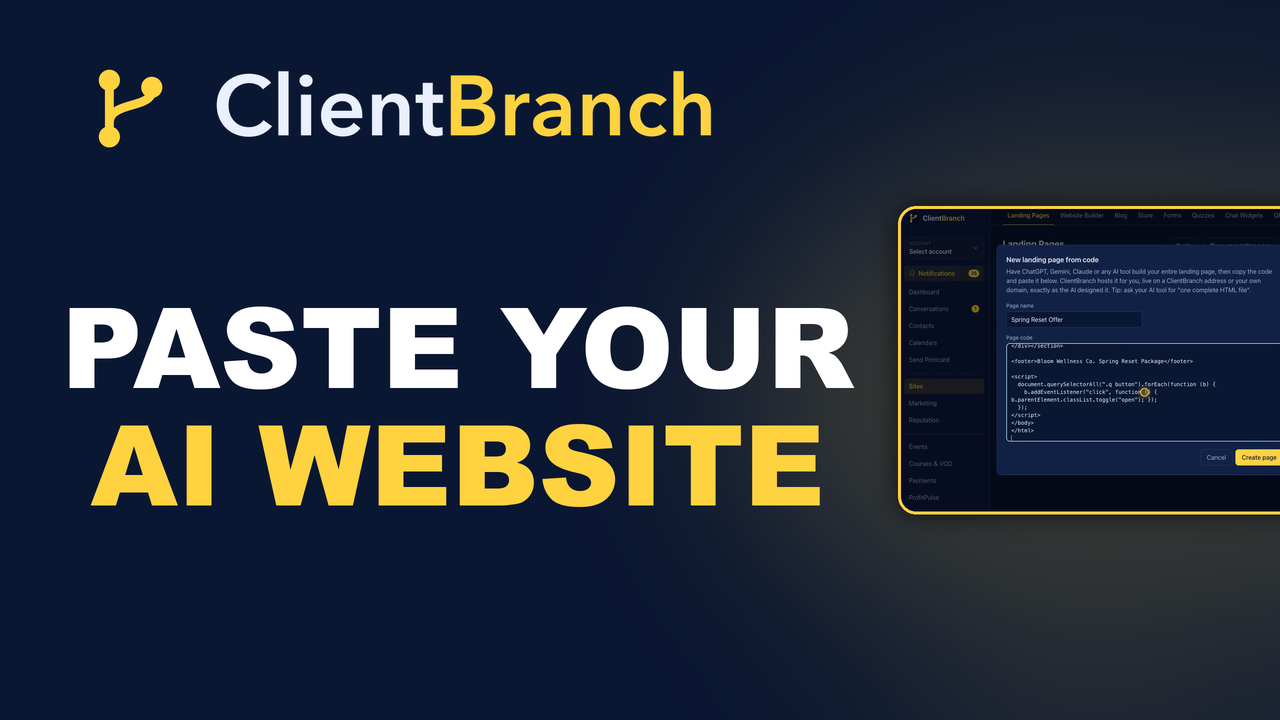
Have ChatGPT, Gemini or Claude Build Your Whole Website, Then Paste It Into ClientBranch and Go Live
Have ChatGPT, Gemini or Claude build your entire landing page or website, then copy and paste the code into ClientBranch. We host it as a live landing page or a complete website on your own domain, with your CRM, bookings and payments behind it.
Something changed this year in how small businesses get a website. You can open Gemini, ChatGPT or Claude, describe your business in a paragraph, and a few seconds later you are looking at a finished page. Real headlines, a color palette that fits your brand, smooth animations, a mobile menu, a pricing table, a FAQ that opens and closes. People call it vibe coding, and the results are often better than what a template would give you after an afternoon of dragging blocks around.
Then comes the awkward part. The page lives inside a chat window. To get it in front of customers you need hosting, a domain pointed at it, a way to collect leads, and somewhere for those leads to go. Most people stall right there, with a beautiful page that nobody will ever see.
That gap is what this update closes. You can now have your AI tool build your entire landing page or your entire website, copy the code, and paste it straight into ClientBranch. ClientBranch hosts it for you as a live landing page or a complete website, on a ClientBranch address or your own domain, exactly as the AI designed it. No web host to sign up for, no developer, no rebuilding it block by block.
When you start a landing page or a website page in ClientBranch, you now get a choice: build it in the ClientBranch builder, or paste your own code. Either way, the finished page lives next to your CRM, your booking calendar and your payments.
Two ways to start, your choice every time
Click + New page on the Landing Pages screen, or + New website in the Website Builder, and the first thing you see is the question: ClientBranch builder or Paste your own code.
The builder is still the right answer for plenty of people. It lays every page out on a proven conversion formula, writes the copy with your own AI key, and every section is wired to your forms, calendars and payments from the start. If you like editing a page section by section, nothing has changed for you.
Paste your own code is for everyone who has already found an AI tool they enjoy designing with. You keep that workflow. You describe, you tweak, you ask for "make the hero darker" twenty times until it is right, and when you are happy, the finished page comes to ClientBranch in one paste. No rebuilding it block by block, no losing the design you spent an hour perfecting.
How to get clean code out of your AI tool
The single most useful phrase is this: give me this as one complete HTML file. A single file keeps the layout, the styling and the scripts together, so nothing goes missing on the way across.
A good first prompt looks something like this: "Design a one page website for my hypnotherapy practice in Tampa, called [your business name]. Sections for the hero, how it works, the three programs with prices, client stories, FAQs and a book a call button. Calm navy and soft gold colors, modern and mobile friendly. Give me this as one complete HTML file."
Preview the result in the AI tool, ask for changes until you love it, then copy the whole file with the tool's copy button. If you grab the whole chat answer by accident, with the little code fence markers around it, ClientBranch strips those off for you.
One thing to watch for. Some tools default to React or Next.js code, which starts with lines like import React or export default. That is source code for developers, and it needs a build step before any browser can run it. If you paste it, ClientBranch tells you so in plain English. Reply to the AI with "give me this as one complete HTML file" and paste the new version instead.
Publishing a landing page from code
- Go to Sites, Landing Pages and click + New page.
- Choose Paste your own code.
- Give the page a name, or leave it blank and ClientBranch uses the title inside the code.
- Paste the code into the big box and click Create page.
- The page arrives as a draft. Click Preview to see it exactly as visitors will, then More, Publish to put it live.
That is the whole job. The page keeps every font, color, animation and script it had in the AI tool, because nothing is converted or redrawn. What you designed is what your visitors get.
Once it is live, the page gets a Copy link button, so you can drop the address straight into an ad, a bio link, a QR code or an email.
Building a whole website from code
A website is just a handful of pages that link to each other, and that is exactly how it works here. In the Website Builder, click + New website, choose Paste your own code, give your website a name, and paste your home page.
Your Home page becomes the front door. Then click + Add page on your new website's card and paste About, Services, Contact and the rest, one at a time. ClientBranch keeps them together as one site, listed together on the Website screen, and you can publish the whole site in one click rather than page by page.
Point your own domain at ClientBranch, choose your pasted site as the front page of that domain, and you are live at yourbusiness.com. AI tools usually link their pages as about.html or services.html, and those links open the pages you named About and Services, so the menu works the way the AI wrote it.
Imagine a stage hypnotist who wants a fresh site before festival season. On a Sunday afternoon they design five pages in Gemini: home, shows, corporate events, testimonials and booking. By Sunday evening all five are pasted in, published and running on their own domain. No designer, no developer, no second hosting bill.
Turning a pretty page into a page that books clients
Here is the honest truth about AI-built pages: they look finished, but the forms go nowhere. An AI tool can draw a beautiful contact form, but it has no inbox to send the answers to. Visitors fill it in, press send, and the lead disappears.
This is where pasting into ClientBranch beats pasting into a plain web host. Open the page's Sections tool and swap the AI's form for a ClientBranch lead form, quiz or booking calendar. Now every submission lands in your contacts, triggers your follow up automations, and shows up in your notifications. Point your buttons at your booking page, your store or a payment link, and the page books and sells as well as it looks.
Your ClientBranch chat widget appears on pasted pages automatically too, so a visitor with a quick question can ask it right there, and the conversation lands in your inbox with every other message.
Changing a pasted page later
Pages are never finished. Prices change, a new program launches, a client gives you a testimonial too good to leave out. You have three ways to update a pasted page, and none of them change its address, so every link and ad you have already shared keeps working.
- Edit code. Under More, open the code again. Go back to your AI tool, ask for the change, and paste the new version over the old one. Or fix a single line by hand if you are comfortable doing that.
- Edit. Change any wording, swap any image, and set where every button and link goes, without touching the code at all.
- Sections. Remove a section you no longer need, or replace one with a ClientBranch form, quiz, booking calendar or video.
Is it safe to run code I did not write?
It is a fair question, and we built the feature around the answer. Pasted pages run their scripts, because menus, sliders, animations and styling tools like Tailwind all depend on them. But every pasted page runs in its own sealed space. Its code can do whatever it likes inside the page, and it can never reach your ClientBranch login, your contacts or anyone else's account.
That means you can experiment freely. Try a bold design, paste it, preview it, and delete it if you change your mind. Every page arrives as a draft, so nothing goes public until you choose to publish it.
Which one should you use?
Use the ClientBranch builder when you want a page built on a proven conversion formula, with every section already connected to your forms, calendars and payments, and you would rather edit text in boxes than think about code.
Use Paste your own code when you already have a design you love, when you want a look no template offers, or when you simply enjoy shaping a page by chatting with an AI tool. You keep the creative freedom, and ClientBranch gives that page hosting, your domain, your CRM and your booking system behind it.
Most businesses will end up using both. A pasted site for the brand, builder pages for each campaign, every one of them feeding the same contact list. Open Landing Pages or the Website Builder, click New page, and pick the way that suits you today.
Try ClientBranch free for 15 days
Get booked, get paid, and keep clients coming back, all from one place. No card required, cancel anytime.
Start my 15-day free trial